Reader-supported: we may earn a commission from links on this page.
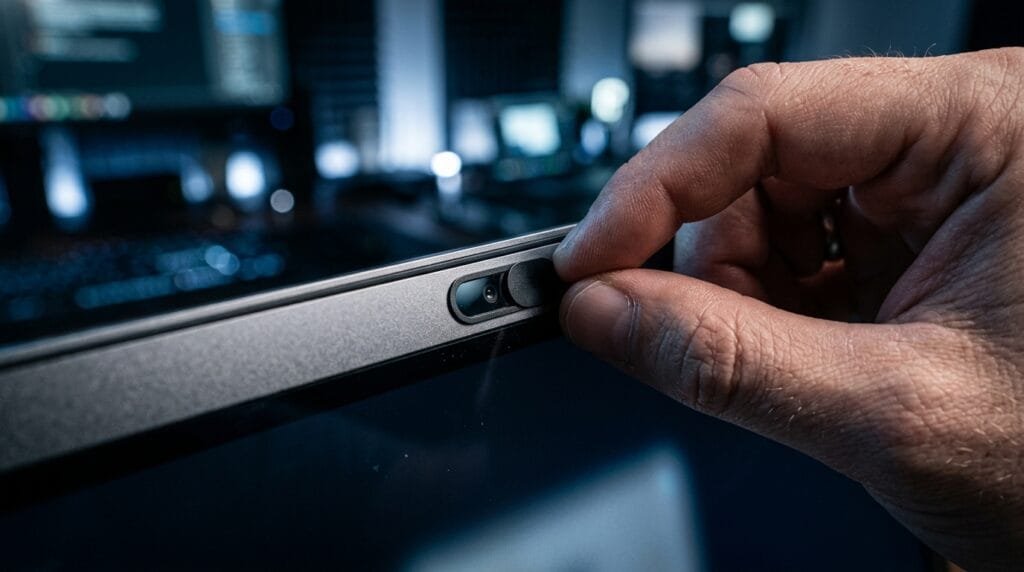
Quick answer: For most Windows laptops, the CloudValley metal webcam cover is the pick: it’s thin, slides open and shut, and has more ratings than any other cover we found. On a MacBook, be careful: Apple says a camera cover shouldn’t be thicker than 0.1mm, and most slide covers are thicker than that. Use a flat sticker like BLOCKED vinyl webcam covers, or take any slider off before you close the lid. On a desktop, a webcam with a built-in shutter, like the Logitech C920S, avoids stick-on covers altogether.
Table of Contents
The Best Webcam Covers at a Glance
| Pick | Type | Thickness (maker) | Best for |
|---|---|---|---|
| CloudValley Metal Slide (2-pack) | Slide cover | 0.023 in (about 0.6mm) | Most Windows laptops |
| Cute Panda Slide | Slide cover | 0.02 in (about 0.5mm) | A fun look |
| MESMOS 6-Pack | Slide covers | Not listed | Covering several devices |
| BLOCKED Vinyl Stickers | Flat sticker | Not listed (“thin”) | MacBooks and tight lids |
| Logitech C920S | Webcam with shutter | No cover needed | Desktops and monitors |
| Logitech Brio 101 | Webcam with slide cover | No cover needed | A MacBook used with a monitor, budget setups |
Prices and stock change often, so check the current listing before you buy.
Best Webcam Covers in 2026
1. CloudValley Metal Slide: Best Overall
See the CloudValley webcam cover
CloudValley’s metal slide is the most-reviewed webcam cover we found, with tens of thousands of ratings. The maker lists it at 0.023 inches thick, far thinner than a chunky plastic slider, and says its adhesive won’t leave residue. It comes in a 2-pack, so you can cover a laptop and a tablet. It’s a good fit for most Windows laptops; on a MacBook, read the MacBook section first.
2. Cute Panda Slide: Most Fun
See the Cute Panda webcam cover
If you’d like your cover to have some personality, this slide puts a small panda on your screen bezel. The maker lists it at 0.02 inches thick, similar to the CloudValley.
3. MESMOS 6-Pack: Best for Several Devices
Six decorated slide covers in one pack, handy if you want to cover a laptop, tablet and phone, or share them with family. MESMOS doesn’t list a thickness, so treat it like any other slider on a MacBook and remove it before closing the lid.
4. BLOCKED Vinyl Stickers: Best for MacBooks
See BLOCKED vinyl webcam covers
A flat sticker has no moving parts and nothing raised to press into your screen. BLOCKED’s pack has 57 reusable vinyl stickers in three sizes, and the maker says they leave no residue and let your laptop shut easily. It doesn’t list an exact thickness, though, so we can’t confirm it meets Apple’s 0.1mm limit. Use one sticker rather than stacking them, and peel it off before you close the lid if it feels thick.
5. Logitech C920S: Best for Desktops
If you use a desktop or an external monitor, the simplest answer is a webcam with a privacy shutter built in. The Logitech C920S is a 1080p webcam with a cover that flips over the lens, so there’s nothing to stick on your screen.
6. Logitech Brio 101: Budget Webcam With a Built-In Cover
The Brio 101 is Logitech’s entry-level 1080p webcam, and it has a slide cover built in, so the lens is blocked whenever you’re not on a call. Logitech lists it as working with Windows, macOS and ChromeOS. It plugs into a USB-A port, so on a MacBook with only USB-C ports you’ll need a small adapter.
Is a Webcam Cover Safe on a MacBook?
Only if it’s very thin. Apple warns that closing a Mac laptop with a camera cover installed might damage your display, because the gap between the display and keyboard is built to very tight tolerances. Apple says a cover should be no thicker than an average piece of printer paper (0.1mm), shouldn’t leave adhesive residue, and should come off before you close the lid if it’s thicker than that.
Here’s the honest math: 0.023 inches is about 0.6mm and 0.02 inches is about 0.5mm. The metal sliders above are much thinner than a bulky plastic cover, but still several times thicker than Apple’s limit. On a MacBook, either use a flat sticker, rely on the green camera light, or remove the slider before closing. If you use your MacBook with an external monitor, a webcam with a built-in cover, like the Logitech C920S or the Brio 101, never touches your screen at all.
We checked how common this is. In our webcam cover thickness study, none of the 12 best-selling covers that list a thickness met Apple’s 0.1mm limit. They ran from 0.25mm to 0.76mm.
Apple also points out two things worth knowing. Your Mac’s camera has a green indicator light that glows whenever the camera is on, and a cover placed badly can block the ambient light sensor next to the camera, which stops automatic brightness and True Tone from working.
How to Cover a MacBook Camera Safely
If you want a cover on your MacBook, or your workplace requires one, Apple’s support page sets three rules:
- Keep the cover no thicker than 0.1mm, about one sheet of printer paper. A flat sticker comes closest of the picks above, so check the listed thickness before you buy.
- Avoid covers that leave adhesive residue on the screen.
- If your cover is thicker than 0.1mm, take it off before you close the lid.
Keep the cover off the small sensor next to the camera too. Apple says covering it can stop automatic brightness and True Tone from working.
How to Turn Off Camera Access on a Mac
Apple’s own advice is to skip the cover and use two built-in controls instead. Both are free and never touch your screen.
- Watch the green light. Apple says the camera on a Mac laptop can’t switch on without the green indicator light next to it turning on too.
- Choose which apps can use the camera. Open the Apple menu, then System Settings, then Privacy & Security, then Camera, and switch off any app you don’t want using it. On older Macs this is under System Preferences, then Security & Privacy. Since macOS Mojave, apps have to ask your permission before they can use the camera.
A cover is still a cheap backup if you want to be sure the camera sees nothing, as long as it follows the rules above.
Can a Webcam Cover Crack Your Screen?
Yes, on laptops with very little space between the screen and keyboard. Apple warns that closing a Mac laptop with a camera cover on it might damage your display, because that gap is designed to very tight tolerances. A raised slider presses into the glass every time you shut the lid.
The risk is highest with chunky plastic sliders on thin laptops such as the MacBook Air and MacBook Pro. In our webcam cover thickness study, none of the 12 best-selling covers that list a thickness met Apple’s 0.1mm limit.
To avoid it, use a flat sticker, take off any slider before you close the lid, or skip the cover and control camera access in your settings. If your screen is already cracked near the camera, contact the maker or an authorized repair shop rather than adding another cover.
Should You Cover Your Webcam?
For most people the risk of someone secretly switching on your webcam is low, but it isn’t zero: malware can give an attacker access to your camera. Most laptops have a light that turns on with the camera, and Apple says a Mac’s green light always glows when the camera is active. A cover adds a physical backup, so even if something goes wrong, the camera only sees black. If you often forget to check the light, or you use a shared or work computer, a thin cover is a cheap extra layer.
How to Cover Your Laptop Camera for Free
- Turn off camera access in your settings. On a Mac, open System Settings, then Privacy & Security, then Camera, and switch off apps that don’t need it. On Windows 11, open Settings, then Privacy & security, then Camera.
- Check for a built-in shutter. Some laptops, especially business models, have a physical shutter or a switch that turns the camera off.
- Avoid tape and sticky notes. They leave residue on the lens and are messy to remove before a call. A reusable sticker does the same job more cleanly.
Will a Webcam Cover Block Your Screen Sensors?
It can. The tiny dots next to your camera are usually sensors, such as the ambient light sensor that adjusts brightness, and on some Windows laptops an infrared camera for face sign-in. Place the cover over the camera lens only. If your screen stays dim or face sign-in stops working, move the cover.
How to Remove an Old Plastic Slider Safely
If you have a thick plastic slider on your screen, remove it before you close the lid again, but don’t pry it off with a fingernail or anything sharp. Turn off your laptop, warm the cover for a few seconds with a hairdryer on its lowest setting to soften the glue, then slide dental floss or a thin plastic pick under it. Wipe any leftover residue with a microfiber cloth and a drop of isopropyl alcohol.
The PrimeDigger Verdict
For a Windows laptop, the CloudValley metal slide is the easy pick. On a MacBook, follow Apple’s 0.1mm rule: use a flat sticker, rely on the green camera light and your privacy settings, or remove any slider before you close the lid. On a desktop, get a webcam with a built-in shutter and skip the stick-on covers entirely.
Covering your camera is one step. If you work in public, a laptop privacy screen stops people beside you reading your screen (there’s a monitor version too), Faraday bags block signals from your phone and car keys, and it’s worth knowing how Wi-Fi doorbell jammers can knock out smart cameras.
For more simple tools that protect your privacy at home and on the go, see our roundup of privacy gadgets that actually protect you.
Want to go further? Webcam spying is one of the topics in our ebook The Hidden Surveillance Bible, a 55-page guide to finding hidden cameras, trackers and stalkerware, with 4 printable checklists. Get the ebook ($19) → If you work from cafés or shared spaces, The Remote Work Surveillance Bible covers privacy screens, VPN travel routers and Faraday bags. See all our ebooks →
Covered your own camera? When you travel, the cameras to worry about are the ones in the room. Get our free one-page checklist for hotels and rentals.
Frequently Asked Questions
What is the best webcam cover?
For most Windows laptops, the CloudValley metal slide: it is thin, easy to open and close, and the most-reviewed cover we found. For a MacBook, a flat sticker is safer, and for a desktop, a webcam with a built-in shutter such as the Logitech C920S avoids covers entirely.
What’s the best way to cover a laptop camera?
On most Windows laptops, a thin slide cover such as the CloudValley metal slide works well. On a MacBook, use a flat sticker, because Apple says anything over 0.1mm can damage the screen when you close the lid. You can also switch off camera access in your system settings, or use a built-in shutter if your laptop has one.
Can a camera cover break a MacBook screen?
It can. Apple warns that closing a Mac laptop with a camera cover on it might damage the display, because the gap between the screen and keyboard is very small. Apple says a cover should be no thicker than 0.1mm, about a sheet of printer paper, and thicker covers should come off before you close the lid.
Is a webcam cover safe for a MacBook Air?
Only a very thin one. Apple’s 0.1mm limit applies to its Mac laptops, including the MacBook Air. Most slide covers are thicker, so use a flat sticker or remove the slider before closing the lid.
How do I cover my MacBook camera?
Use a flat sticker no thicker than 0.1mm, about a sheet of printer paper, and keep it off the light sensor next to the camera. If you use a thicker slider, take it off before you close the lid. Or skip the cover: watch for the green camera light and turn off camera access for apps in System Settings, under Privacy & Security, then Camera.
Can a webcam cover crack a laptop screen?
Yes. A raised cover can press into the screen when you close the lid, especially on thin laptops. Apple warns this might damage a Mac’s display and says a cover should be no thicker than 0.1mm.
What can I use instead of a plastic webcam cover?
A flat, reusable sticker, a thin metal slider you remove before closing a MacBook, or your computer’s own camera privacy settings. On a desktop, a webcam with a built-in shutter is the simplest option.
Does tape leave residue on a laptop camera?
Often, yes. Household tape and sticky notes use adhesives that are not made for screens and can leave a gummy film on the lens. Apple also advises avoiding covers that leave adhesive residue.
Do I need to cover my laptop camera?
You do not have to, but a cover is a cheap backup. Most laptops show a light when the camera is on, and on a Mac the green light always glows when the camera is active. A cover makes sure the camera sees nothing even if it is switched on without you noticing.