
Reader-supported: we may earn a commission from links on this page.
Quick answer: Hotel Wi-Fi is usually safe enough for everyday browsing: the FTC says most websites now encrypt your connection. The real risks are fake hotspots, other guests seeing your devices, and scam sites. The simplest fix is your phone’s hotspot or a VPN app. A travel router is worth it if you travel often, because it puts all your devices on your own private network and can run a VPN for every device at once. Our top travel router pick is the GL.iNet Beryl AX.
We looked at what security agencies actually say about hotel Wi-Fi, what a travel router does and doesn’t protect, and which models are worth buying.
Table of Contents
Is Hotel Wi-Fi Safe?
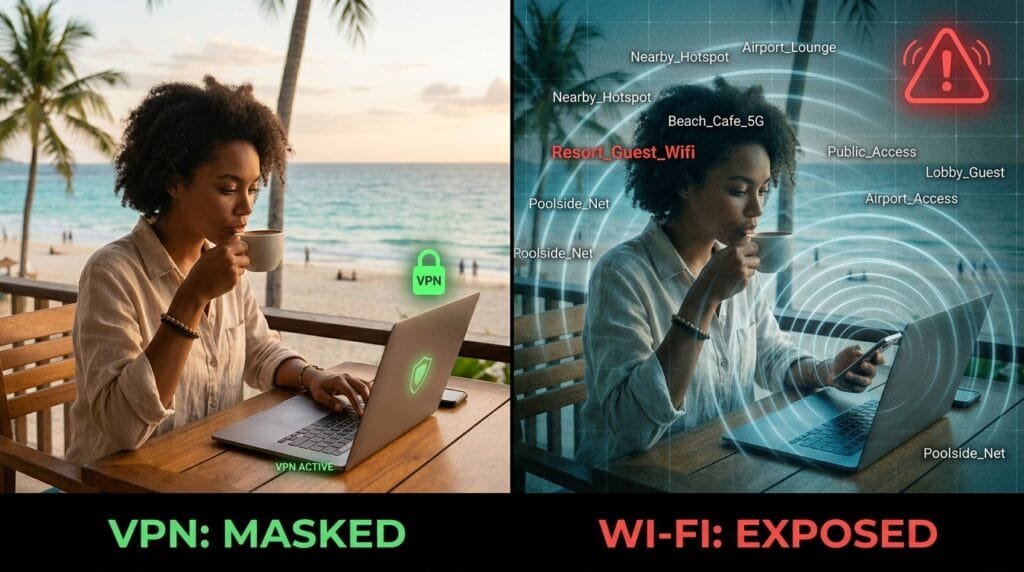
Safer than it used to be. The FTC says that because of the widespread use of encryption, connecting through a public Wi-Fi network is usually safe. Look for the lock symbol or “https” in your browser’s address bar.
The risks that remain are mostly about the network around you, not your bank login:
- Fake hotspots. Someone can set up a network with a name like the hotel’s. Ask the front desk for the exact network name.
- Other guests on the same network. On a shared network, your laptop, phone, streaming stick or game console may be visible to other devices.
- Scam websites. The FTC notes encryption protects your data in transit, but it can’t protect you from a fake website you choose to trust.
The FTC also recommends strong passwords, two-factor authentication and keeping your software updated. Those matter more than any gadget.
VPN vs Travel Router vs Phone Hotspot: Which Protects You?
All three keep you off the risky parts of a hotel network, but they work differently. Here is how they compare.
| Option | What it protects | Best for | Downsides |
|---|---|---|---|
| Phone hotspot | Your devices skip the hotel network completely and use your cellular connection | Short stays, banking and quick tasks | Uses your data plan and drains your phone battery |
| VPN app | Encrypts traffic between your device and the VPN server, so the hotel network can’t see which sites you visit | Laptops and phones on any public Wi-Fi | Needs an app on each device and a subscription |
| Travel router | Puts all your devices behind your own private network, and can run a VPN for every device at once, including TVs | Frequent travelers, families and streaming sticks | One more gadget to carry and set up |
For most trips, a VPN app on your phone and laptop covers the main risks. If you travel often or bring a streaming stick, a travel router running a VPN protects everything at once. See our VPN pick in the Pair It With a VPN section below.
What a Travel Router Actually Does
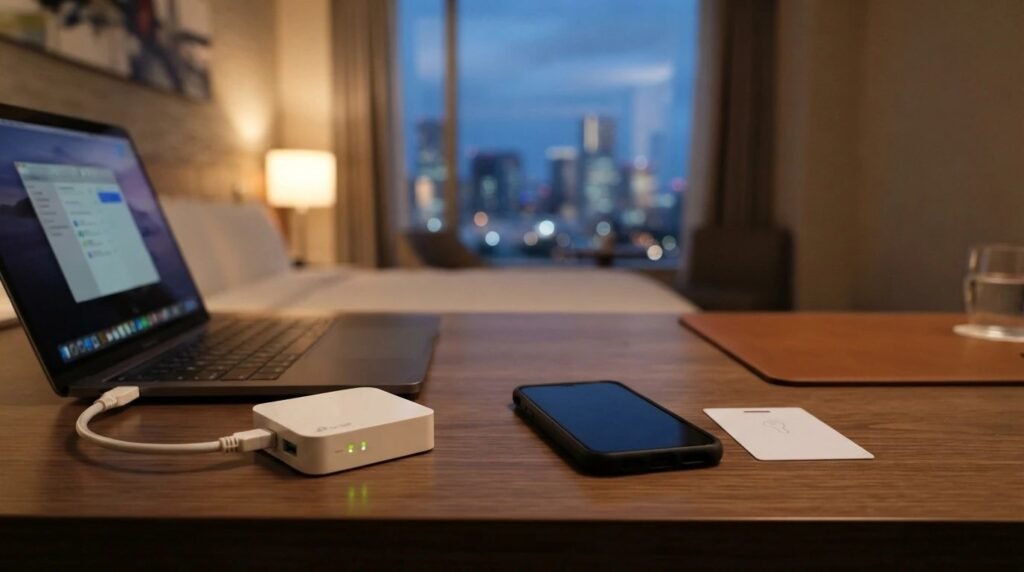
A travel router is a small, pocket-sized router. You connect it to the hotel’s Wi-Fi or Ethernet port once, and it creates your own private Wi-Fi network for all your devices.
- One login for everything. You sign into the hotel’s login page once on the router, and every device connects to your network. This also helps when hotels limit how many devices you can connect.
- Your own private network. Your devices sit behind the router instead of sharing the hotel network with strangers.
- A VPN for every device. Most travel routers can run a VPN like WireGuard or OpenVPN, which protects devices that can’t run VPN apps themselves, such as smart TVs, streaming sticks and game consoles.
- Your devices remember your network. Phones, tablets and laptops connect automatically to your travel router in every hotel, with no new passwords to type.
What it doesn’t do: it won’t protect you from phishing, weak passwords or malware. And a VPN only hides your traffic from the local network and internet provider; it doesn’t make you anonymous.
Best Travel Routers
| Router | Wi-Fi | Best for |
|---|---|---|
| GL.iNet Beryl AX (GL-MT3000) | Wi-Fi 6 | Best overall for most travelers |
| GL.iNet Slate AX (GL-AXT1800) | Wi-Fi 6 | Faster upgrade, more ports |
| GL.iNet Opal (GL-SFT1200) | Wi-Fi 5 | Budget pick |
| GL.iNet Mango (GL-MT300N-V2) | Wi-Fi 4 | Smallest and cheapest, light use |
Best Overall: GL.iNet Beryl AX
Check the current price of the GL.iNet Beryl AX
The most popular travel router we found, with thousands of buyer ratings. It has Wi-Fi 6, a 2.5G WAN port for fast wired hotel connections, a USB 3.0 port for phone tethering, and WireGuard and OpenVPN built in. According to GL.iNet, it works with 30+ VPN providers (you need your own subscription). It ships with US, UK and EU plugs.
Upgrade Pick: GL.iNet Slate AX
Check the current price of the GL.iNet Slate AX
A step up with more Ethernet ports, useful if you want to plug in a laptop and another device by cable. It’s a well-reviewed Wi-Fi 6 model with WireGuard and OpenVPN support. For most people, the Beryl AX is enough.
Budget Pick: GL.iNet Opal
Check the current price of the GL.iNet Opal
A cheaper dual-band Wi-Fi 5 router that handles hotel logins, a private network and basic VPN use. VPN speeds will be lower than the Wi-Fi 6 models, but it’s plenty for browsing, email and HD streaming on a typical hotel connection.
Smallest Option: GL.iNet Mango
Check the current price of the GL.iNet Mango
A tiny, very cheap router with more than 13,000 buyer ratings. It’s older, slower Wi-Fi 4 hardware, so it’s best as a simple private network for light use rather than a fast VPN router.
Pair It With a VPN
A travel router’s VPN feature needs a VPN subscription. Two well-audited options that work with GL.iNet routers over WireGuard are NordVPN and Surfshark. See our full NordVPN vs ExpressVPN vs Surfshark comparison, and avoid free VPNs.
Working Abroad on a Company Laptop? Read This First
Some people buy a travel router hoping to hide where they’re working from their employer. Don’t count on it. Your laptop can work out its location from nearby Wi-Fi networks, not just your IP address. For example, Microsoft explains that Windows location services use nearby wireless access points, cell towers and your IP address to determine location, and company IT tools can see much more than a home user’s settings.
There are also real reasons employers care: working from another state or country can create tax, legal and data protection problems for the company. The honest route is the best one: ask your manager or HR. Many companies allow short stints abroad with approval. Our ebook The Remote Work Surveillance Bible covers what work laptops can track.
Travel Router Setup Tips
- Change the admin password on day one.
- Update the firmware before your trip.
- Use a strong Wi-Fi password for your private network.
- Turn on the VPN kill switch if you use a VPN, so traffic stops if the VPN drops.
- Use the hotel’s Ethernet port when there is one. It’s usually faster and more stable than repeating weak hotel Wi-Fi.
Wi-Fi isn’t the only privacy gap when you work from a hotel, café or airport. A privacy screen stops people reading your laptop over your shoulder (see our pick for the best laptop privacy screen), and a Faraday bag blocks your phone’s signals when you don’t want it tracked (see the best Faraday bags that actually work).
The PrimeDigger Verdict
Hotel Wi-Fi is usually safe for everyday browsing, thanks to encryption. A travel router is a convenience and privacy upgrade, not a must-have. If you travel often with several devices, or want a VPN on your TV or streaming stick, the GL.iNet Beryl AX is the one to get. Just don’t expect it to hide your location from a work laptop.
Want the deeper investigation? Our ebook The Remote Work Surveillance Bible explains what employers can monitor on work laptops and phones, and how to protect your privacy the right way. Get the ebook ($19) → See all our ebooks →
Frequently Asked Questions
Do I need a travel router?
Not strictly. The FTC says public Wi-Fi is usually safe because most sites are encrypted. A travel router is worth it if you travel often with several devices, hit hotel device limits, or want a VPN on devices that cannot run VPN apps.
Is hotel Wi-Fi safe?
Usually, for normal browsing, because most websites use encryption. Confirm the exact network name with the hotel, look for https, and use two-factor authentication.
Can a travel router hide my location from my employer?
Do not rely on it. Laptops can determine location from nearby Wi-Fi networks, not just your IP address. If you want to work abroad, ask your employer for approval.
What is the best travel router?
For most travelers, the GL.iNet Beryl AX: Wi-Fi 6, built-in WireGuard and OpenVPN, a 2.5G WAN port and US, UK and EU plugs. The GL.iNet Opal is a cheaper option.
Can I use a travel router with a mobile hotspot?
Yes. Most travel routers can connect to hotel Wi-Fi, a wired hotel port or a phone hotspot (including USB tethering on many models), then share that connection with your devices.
Sources
- FTC Consumer Advice: Are Public Wi-Fi Networks Safe? What You Need To Know
- Microsoft Support: Windows location service and privacy