Reader-supported: we may earn a commission from links on this page.
Google, Apple, banks and shopping sites keep asking the same thing: “Create a passkey?” But what’s the difference between a passkey and a password, and where does a physical security key fit in?
We read the FIDO Alliance’s passkey standard pages and Apple’s, Google’s and Yubico’s own documentation to explain the passkey vs password question in plain English, and which one you should use for your most important accounts.
We research, we don’t lab-test. Everything below comes from the official sources listed at the end, checked in October 2026.
In this guide:
- The Short Answer
- What Is a Passkey?
- Passkey vs Password vs Security Key Compared
- How Passkeys Work, in Plain English
- Are Passkeys Safe?
- Passkey vs Security Key
- Which Should You Use?
- How to Switch to Passkeys
- Our Verdict
- Frequently Asked Questions
The Short Answer
Passkeys beat passwords. There’s nothing to remember, nothing to reuse and nothing a fake website can steal. A security key is a small device you plug in or tap. It can hold passkeys that never leave it, or act as a second step after your password. For most people: turn on passkeys for email, banking and shopping accounts. If your email is a high-value target, add two hardware security keys.
What Is a Passkey?
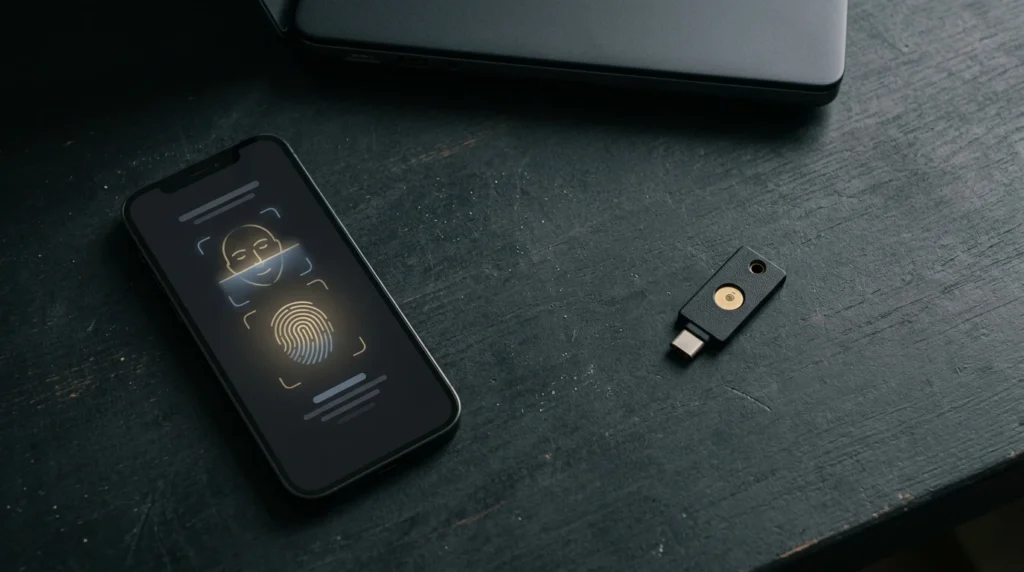
A passkey is a sign-in credential that replaces your password. It’s a pair of digital keys: the website keeps the public key, and the private key stays on your phone, computer, password manager or security key. You sign in by unlocking your device with your face, fingerprint or PIN, and the passkey only works on the website it was made for. Passkeys are built on an open standard from the FIDO Alliance, and Apple, Google and Microsoft all support them.
Passkey vs Password vs Security Key Compared
| Password | Passkey | Security key | |
|---|---|---|---|
| What it is | A secret you type | A digital key pair stored on your phone, computer or password manager | A small USB or NFC device |
| How you sign in | Type it | Face, fingerprint or device PIN | Plug in or tap, often with a PIN |
| Can a fake site steal it? | Yes, if you type it there | No, it only works on the real site | No, it only works on the real site |
| Exposed in a website breach? | Yes, the site stores something to check it against | No, the site stores only a public key | No, the site stores only a public key |
| If you lose it | Reset by email or text | Synced passkeys come back on a new device | Use your backup key |
| Cost | Free | Free | You buy it; check the current price |
How Passkeys Work, in Plain English
When you create a passkey, your device makes two matching keys. Apple explains that the website keeps the public key and the private key stays on your device, and the website never learns the private key. To sign in, the site sends a challenge, your device signs it with the private key after you unlock it, and the site checks the signature.
That design is why passkeys stop the two biggest password problems. A fake login page gets nothing it can reuse, because the passkey is tied to the real website’s address. And if the website is hacked, the thief only gets public keys, which are useless for signing in.
There are two kinds, according to the FIDO Alliance:
- Synced passkeys copy themselves across your devices through a passkey manager such as iCloud Keychain, Google Password Manager or a password manager app. Apple says iCloud Keychain syncing is end-to-end encrypted.
- Device-bound passkeys never leave the device that created them. Passkeys stored on a hardware security key work this way.
Are Passkeys Safe?
Yes, and safer than passwords for almost everyone. But they move the risk from “what you know” to “what you hold,” so a few things matter:
- Your device is the key. Google warns that anyone who can unlock a device holding your passkey can get into your account. Use a strong screen lock and only create passkeys on devices you own.
- Your cloud account matters. Synced passkeys are only as safe as the Apple, Google or password manager account that stores them. Protect that account first.
- Old methods may still work. Google says adding a passkey doesn’t remove your other sign-in and recovery methods, so a weak password or text-message recovery can still be a way in.
Email is the account to protect first, because it can reset every other password. We explain why in our look at whether Meta’s AI agent Muse is safe, and phishing tricks keep getting better, as our guide to AI scams shows.
Passkey vs Security Key
A security key isn’t a different technology. It’s a different place to keep a passkey. Google says a security key can work in two ways:
- As a second step. You type your password, then tap the key. Any FIDO security key can do this.
- As a passkey. You sign in with the key alone, no password. This needs a FIDO2 key.
The FIDO Alliance calls device-bound passkeys on security keys the highest-assurance option, and says they can also serve as a recovery method if you lose all your synced devices. Yubico says its keys with firmware 5.7 or later can store up to 100 passkeys, up from 25 on older firmware.
For most people, the Yubico Security Key C NFC covers passkeys and two-step sign-in for Google, Microsoft and Apple accounts. The YubiKey 5C NFC adds extras such as one-time codes and smart card login for work systems. Apple requires at least two keys for an Apple Account, and that’s good advice everywhere. Our guide to which security key you need compares five Yubico keys.
Which Should You Use?
- Most people: passkeys on your phone or password manager for email, banking, shopping and social accounts. Keep a strong, unique password as a backup.
- People with a lot to lose (journalists, executives, people facing stalking or harassment, anyone holding crypto): two hardware security keys on your email and money accounts, plus passkeys elsewhere.
- Shared or work computers: a security key, since you shouldn’t create passkeys on devices you don’t own.
- Sites without passkey support: a password manager with a unique password, plus a security key or authenticator app as the second step.
How to Switch to Passkeys
- Start with your email. For Google, go to myaccount.google.com/signinoptions/passkeys and choose “Create a passkey.” Google says a new passkey can take up to 7 days to become available everywhere.
- On Apple devices, turn on iCloud Keychain. Apple requires two-factor authentication for any account that uses it.
- Accept the prompt on other sites. When a bank or store offers a passkey, say yes and unlock with your face or fingerprint.
- Register two security keys if you use them, and store one somewhere safe at home.
- Keep your recovery options current: a backup email, phone number and saved recovery codes.
Our Verdict
In the passkey vs password debate, passkeys win on every point that matters: they can’t be phished, guessed, reused or leaked in a breach. Switch your email first, then your bank and shopping accounts. If losing your email would be a disaster, add two hardware security keys, the strongest sign-in option most people can get.
Want the full playbook? Our privacy ebooks go deeper on surveillance, data brokers and protecting your accounts.
Frequently Asked Questions
What is a passkey?
A passkey is a sign-in credential that replaces your password. It is a pair of digital keys: the website keeps the public key, and the private key stays on your phone, computer, password manager or security key. You sign in by unlocking your device with your face, fingerprint or PIN.
What is the difference between a passkey and a password?
A password is a secret you type, and the website keeps a copy to check it. A passkey is a pair of digital keys: the website keeps only the public half, and the private half never leaves your device. You unlock it with your face, fingerprint or PIN, and it only works on the real website.
Are passkeys safer than passwords?
Yes. Passkeys can’t be guessed, reused or typed into a fake login page, and a data breach at the website doesn’t expose anything an attacker can sign in with. Their weak spot is your device: anyone who can unlock it can use your passkeys.
Is a passkey the same as a security key?
No. A passkey is the sign-in credential. A security key is a small physical device that can store passkeys that never leave it, or act as a second sign-in step after your password.
Do I still need a password if I use a passkey?
Often, yes, at least for now. Google says adding a passkey doesn’t remove your other sign-in and recovery methods. Keep a strong, unique password and your recovery options up to date.
What happens if I lose my phone with my passkeys?
If your passkeys sync through iCloud Keychain or a password manager, they come back when you sign in on a new device. Passkeys stored only on a lost device or security key are gone, which is why you should register a backup key or keep another sign-in method.
Can a passkey be stored on a YubiKey?
Yes. FIDO2 security keys such as YubiKeys can store passkeys that never leave the key. Yubico says keys with firmware 5.7 or later hold up to 100 passkeys, up from 25 on older firmware.
Sources
- FIDO Alliance: Passkeys
- Apple Support: About the security of passkeys
- Apple Support: About security keys for Apple Account
- Google Account Help: Sign in with a passkey instead of a password
- Google Account Help: Use a security key for 2-Step Verification
- Yubico: YubiKey 5 Series and Security Key Series with 5.7 firmware